 NUILab Documents
Help / Start here / Signing in & two-factor (2FA): step-by-step + FAQ
Start here
Signing in & two-factor (2FA): step-by-step + FAQ
The one page for getting into the lab's web apps the first time — sign in, set up two-factor, and fix the common problems (code didn't arrive, code expired, button stuck).
This is the page to follow the first time you sign in to the lab’s web apps, and the one to come back to if two-factor gives you trouble. If you’re brand new, read Your NUILab account — first sign-in first; this page goes deeper on the two-factor (2FA) step, which is where most first-timers get stuck.
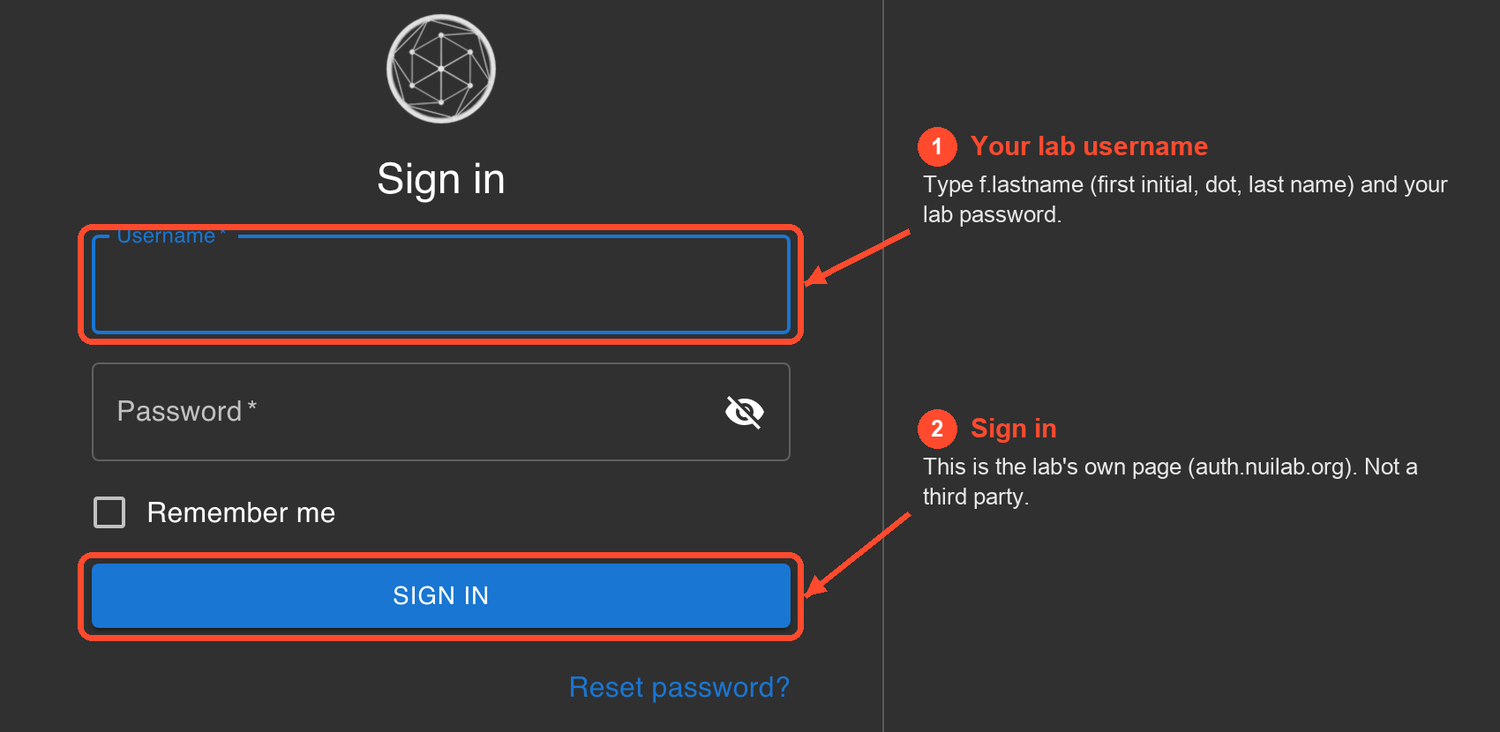
Almost every lab app sends you here — auth.nuilab.org, the lab’s own single sign-in page.
Enter your lab username (f.lastname) and lab password, then SIGN IN. Being
bounced here is normal; it’s not a third party.
What you need before you start
- Your lab username — it looks like
f.lastname(first initial, a dot, your last name). - Your lab password — the temporary one Francisco sent you (or the one you set at pwd.nuilab.org (opens in new tab) ). It’s the same password for the web apps and SSH.
- Access to your lab email inbox — the two-factor setup sends you a code by email.
Don’t have a username or password yet? Message Francisco on Mattermost (opens in new tab) , by email, or in person. There is no self-signup.
What “two-factor” is (and when you need it)
Two-factor (2FA) means: after your password, you confirm it’s really you with a second thing — a 6-digit code from an app on your phone, or a passkey/security key. It protects your account if your password ever leaks.
- Some lab apps require 2FA (for example pwd.nuilab.org (opens in new tab) , where you change your password). For those, you’ll be asked to enroll a second factor the first time.
- For the rest it’s optional but strongly recommended.
You set up 2FA once. After that you just approve sign-ins with your app.
Part 1 — Set up 2FA with Google Authenticator
We’ll use Google Authenticator here — it’s free and the most common one. (Any TOTP app works just as well: Microsoft Authenticator, Authy, 1Password, or Bitwarden — if you already use one of those, use it instead.)
First, install the app on your phone: open the App Store (iPhone) or Google Play (Android), search Google Authenticator, and install it.
Then enroll it with your lab account:
- On a computer, go to auth.nuilab.org (opens in new tab)
and sign in with your
lab username (
f.lastname) and lab password. - Open the menu — the ☰ icon at the top-left — and click Settings.
- Find the One-Time Password section and click ADD.
- A box titled Identity Verification appears: the lab emails you a one-time code to
confirm it’s you. Go to your email, open the message from NUILab Auth
(
no-reply@nuilab.org), copy the code, type it into the box, and click VERIFY.- The code is valid for 15 minutes. Enter it while it’s fresh.
- Don’t see the email within a minute or two? See the code didn’t arrive below.
- After it verifies, the page shows a QR code. Now open Google Authenticator on your phone, tap the + (bottom-right), choose Scan a QR code, and point your camera at the QR on the screen.
- Google Authenticator adds an entry (shown as NUILab Authelia) with a 6-digit code that changes every 30 seconds. Type the current code back into the page to confirm — and you’re enrolled. ✅
That’s it. From now on, when an app asks for your second factor, open Google Authenticator and type the current 6-digit code for NUILab Authelia.
The QR code is a one-time secret. Scan it into your own app and don’t share it or screenshot it into a chat — anyone with that QR could generate your codes. That’s also why this page can’t show a real one.
Part 2 — (Optional) Add a passkey or security key
If your device supports passkeys (Face ID / Touch ID / Windows Hello) or you have a hardware security key (YubiKey, etc.), you can add one under WebAuthn Credentials → ADD on the same Settings page. Same identity-verification step (an emailed code), then follow your device’s prompt. A passkey is the smoothest option if your device supports it — but an authenticator app (Part 1) works everywhere.
Everyday sign-in with 2FA
- Go to the app (or dashboard.nuilab.org (opens in new tab) ) and enter your username and password.
- When asked for the second factor, open your authenticator app and enter the current 6-digit code (or approve the passkey prompt).
- Tick “Remember this device” to skip the second factor on your own computer for 30 days.
Troubleshooting & FAQ
Most first-time problems are one of these. Find yours before messaging — it’s probably faster.
The verification code email didn’t arrive
The setup emails a one-time code from NUILab Auth <no-reply@nuilab.org>. If it’s not in your
inbox within a minute or two:
- Check your Spam / Junk folder.
- Check your CSU email quarantine (CSU filters outside senders — the message may be held there). Release it, and mark the sender as safe so future codes come straight through.
- Make sure the lab has the right email for you. If you’re not sure, ask Francisco.
- Once it arrives, use the most recent code — if you clicked to send more than once, only the latest one works.
“The code expired” / it won’t verify
The code is good for 15 minutes. If email took a while to reach you and the code aged out, just start the step again to get a fresh one, then enter it promptly. Have your email open and ready before you click ADD so you can copy the new code right away.
The VERIFY button just spins, or nothing happens
If you’ve retried several times in a row, the system may have temporarily paused new attempts for a few minutes (an anti-abuse limit). Wait about 10 minutes, then try once more — request a single fresh code and enter it. If it’s still stuck after that, message Francisco.
“Too many attempts” / I think I’m locked out
Same cause as above — a short cool-down after several rapid tries. It clears on its own in a few minutes. Wait, then do it once, cleanly, with your email already open.
I don’t see a QR code / where do I enter the code?
The emailed code goes in the Identity Verification box that pops up right after you click ADD. The QR code only appears after that identity check succeeds — that’s the one you scan with your authenticator app. If you never reached the QR, your emailed code didn’t verify — see the two entries above.
Which authenticator app should I use?
Any TOTP app: Google Authenticator, Microsoft Authenticator, Authy, 1Password, or Bitwarden. If you already use a password manager with a built-in authenticator, that’s the easiest — it syncs across your devices.
I lost my phone / deleted my authenticator — how do I get back in?
You can’t reset it yourself (that’s the point of a second factor). Message Francisco on Mattermost (opens in new tab) — he’ll clear your old second factor so you can enroll a new one. Tip: adding a second method (e.g. a passkey and an authenticator app) means losing one device doesn’t lock you out.
Do I have to set up 2FA?
For most apps it’s optional but recommended. A few (like the password page) require it — you’ll be prompted to enroll the first time you use them. Setting it up once gets it out of the way.
I forgot my password entirely
If you can still sign in, change it at pwd.nuilab.org (opens in new tab) . If you can’t sign in at all, message Francisco on Mattermost (opens in new tab) for a reset — he’ll send you a reset link.
Can I stay signed in?
Yes — tick “Remember this device” at sign-in to stay signed in on your own computer for 30 days. Don’t use it on shared or public machines.
Still stuck after trying the steps above? Message Francisco on Mattermost (opens in new tab) with what you tried and what you saw (a screenshot helps).
Source: content/onboarding/signing-in-2fa.md · maintained in the lab docs repository.