 NUILab Documents
Help / Systems & Tools / Git — code hosting (Forgejo)
Systems & Tools
Git — code hosting (Forgejo)
The lab's self-hosted git at git.nuilab.org — sign in with your lab account, optionally add an SSH key, then clone and push like GitHub.
The lab hosts its own git at git.nuilab.org (opens in new tab)
so our code
lives on lab infrastructure, not a third party’s. The software is Forgejo — an
open-source, self-hosted git host (a fork of Gitea). If you’ve used GitHub or
GitLab, this is the same idea: repositories, issues, pull requests, a web UI — and the
git commands you already know work exactly the same.
Before you start: get access
Two things unlock git:
- A lab account. If you don’t have one yet, start with Your NUILab account — first sign-in .
- Git turned on for your account. Git access is granted per person — ask Francisco (on Mattermost (opens in new tab) or in person) to enable it. Until it’s on, signing in is refused even with a valid lab account.
Sign in
Go to git.nuilab.org (opens in new tab) and click Sign in with NUILab.
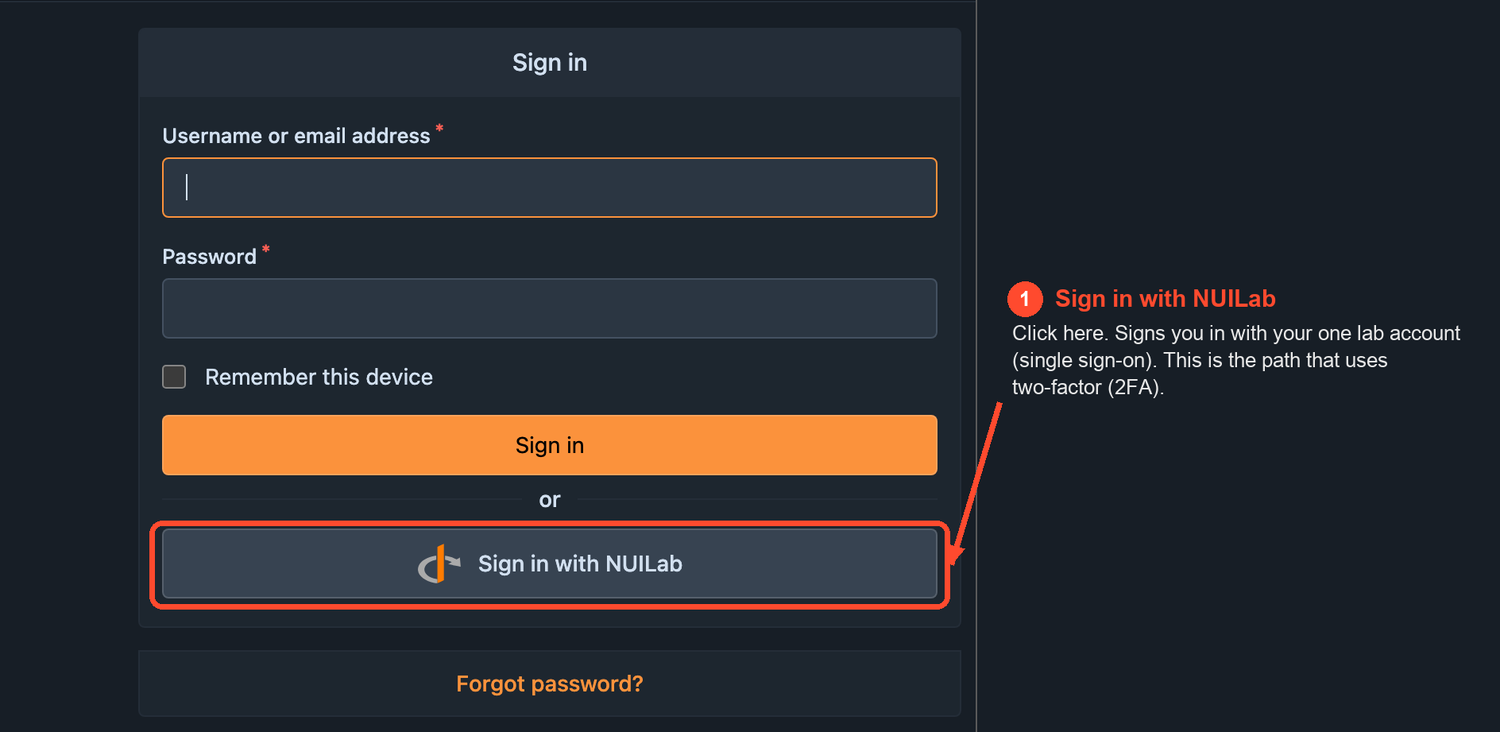
Click Sign in with NUILab — it signs you in with your one lab account (single sign-on) and it’s the path protected by two-factor (2FA). The first time, it creates your git account automatically.
The page also has a plain Username / Password box. Use the Sign in with NUILab button instead — it’s the lab single sign-on and it’s the one covered by two-factor. If you haven’t set up 2FA yet, see Signing in & two-factor .
Add an SSH key — optional, but it makes clone and push painless
An SSH key is not required. Everything here works over HTTPS too — see Prefer not to use a key? below. But with a key added once you’re never prompted for anything on clone or push, and there’s no token to manage or expire.
- If you don’t have a key yet, make one (macOS/Linux terminal, Git Bash on Windows):Press Enter to accept the defaults. This creates
ssh-keygen -t ed25519~/.ssh/id_ed25519(private — keep it) and~/.ssh/id_ed25519.pub(public — the one you share). - Copy the contents of the
.pubfile:cat ~/.ssh/id_ed25519.pub # macOS: pbcopy < ~/.ssh/id_ed25519.pub - Paste it in either of the two places below. You do not need both.
Two places take your key — either one works for git
| Where you paste it | What it unlocks | How soon |
|---|---|---|
| pwd.nuilab.org/keys (opens in new tab) | lab machines and git — it’s copied to git.nuilab.org for you | within 10 minutes |
| git.nuilab.org/user/settings/keys (opens in new tab) — avatar → Settings → SSH / GPG Keys → Add Key | git only | immediately |
The simpler choice is pwd.nuilab.org/keys (opens in new tab)
— one paste
covers both the lab machines and git. Keys copied that way show up in your git settings
titled kanidm:<your label>. That’s the copy; it’s normal, and you can leave it alone.
Worth knowing:
- The copy only happens if your account has git access (see get access ). Without it your key still works on lab machines — just not for git.
- It’s one-way. A key you add directly at git.nuilab.org is yours alone; the copy never touches, renames or removes it.
- Removing a key at pwd.nuilab.org also removes the
kanidm:copy from git, within the same 10 minutes. That’s deliberate — one place to revoke a lost laptop.
Paste the public key only (the
.pubfile). Never share or paste your private key. See also Reset your password .
Prefer not to use a key?
Then don’t. Clone with the HTTPS URL from the Code button and use a personal
access token as the password: avatar → Settings → Applications → Generate New
Token, scope write:repository. Copy the token when it’s shown — it isn’t displayed
again. Your lab password will not work here: single sign-on accounts have no separate
git password, so a token is the HTTPS route.
The HTTPS URL carries no port — it’s the plain https://git.nuilab.org/… you’d type in
a browser. The 2222 above applies only to ssh:// URLs.
Where to keep the token — not in the URL
Set up a helper once, then clone normally and paste the token when git asks. It gets stored in your operating system’s keychain, and you’re never asked again:
git config --global credential.helper osxkeychain   # macOS
git config --global credential.helper manager       # Windows (Git for Windows)
git config --global credential.helper libsecret     # Linux desktop
Never put the token in the clone URL — the
https://you:‹token›@git.nuilab.org/…shape. Git writes that address verbatim into your repository’s.git/config, so the token is then printed bygit remote -v, copied along with the folder, visible in a screen-share, and carried to any machine you move the checkout to. Nothing warns you; it just quietly follows the repo around.
On a Linux machine without a keychain, credential.helper store is the fallback. It writes
the token in plain text to ~/.git-credentials, which is still better than the URL — it’s
one file you can delete, and it never shows up in git remote -v — but restrict it:
chmod 600 ~/.git-credentials.
If a token leaks, it’s fixable — say so early. Delete it at avatar → Settings → Applications (the list shows each token’s last eight characters, so you can tell which is which), generate a fresh one, and tell Francisco. Deleting the old entry is what actually revokes it — creating a new token does not disable the old one, which keeps working until you remove it.
Clone and push
On any repository page, click the Code button and copy the SSH URL. It looks like:
git clone ssh://git@git.nuilab.org:2222/owner/repo.git
(The SSH port is 2222 — the clone URL from the Code button already includes it, so copying from there is the safe way to get it right.)
From then on it’s ordinary git:
git add .
git commit -m "your message"
git pull --rebase        # get others' changes first
git push
HTTPS also works (you’d use a personal access token as the password), but once your SSH key is in, SSH is simpler — no token to manage.
Create a repository
Top-right + → New Repository. Then:
- Give it a name (lowercase, dashes — e.g.
my-project). - Keep it Private unless it’s meant to be public.
- Tick Initialize repository to start with a README.
Create it, then copy the Code → SSH URL to clone it, or point an existing local repo at
it with git remote add origin <url>.
Large files (models, textures, builds)
Git handles source code well and large binaries badly — it stores a complete new copy of a binary every time it changes, forever. Anything 10 MB or larger, and any binary you expect to re-export, belongs in Git LFS instead. See Git LFS — large files .
Good habits
- Repos are private by default — leave them private unless the work is meant to be shared.
- Never commit secrets — passwords, API keys, tokens,
.envfiles. Add them to.gitignoreand keep them out of the history. (If a secret does land in a commit, tell Francisco — rotating it is safer than just deleting the file.) - Add a short README so others know what the repo is.
Trouble
- “Access denied” / bounced after Sign in with NUILab — your account probably doesn’t have git turned on yet. Ask Francisco to enable it.
- “Please make sure you have the correct access rights and the repository exists” — nearly
always the SSH key. Check that
git.nuilab.org/user/settings/keys (opens in new tab)
actually
lists one. If you pasted it at pwd.nuilab.org, give it 10 minutes to be copied over,
then look again — it’ll be titled
kanidm:<your label>. If it never appears, your account probably doesn’t have git access yet; ask Francisco. Test with:A working key answersssh -T -p 2222 git@git.nuilab.orgHi there, <your-username>!. git@git.nuilab.org: Permission denied (publickey)— same cause. Also confirm you’re cloning thessh://…:2222/…URL from the Code button; leaving the port off tries port 22 and fails.- Can’t sign in at all / 2FA trouble — see Signing in & two-factor and Reset your password .
Source: content/systems/git.md · maintained in the lab docs repository.